


Windows help
Video Playback
Change playback speed in earlier Windows versions
Earlier Windows instructions for slow and fast playback. The displayed speed choices belong to the earlier interface, not verified 5.0 controls.
Read More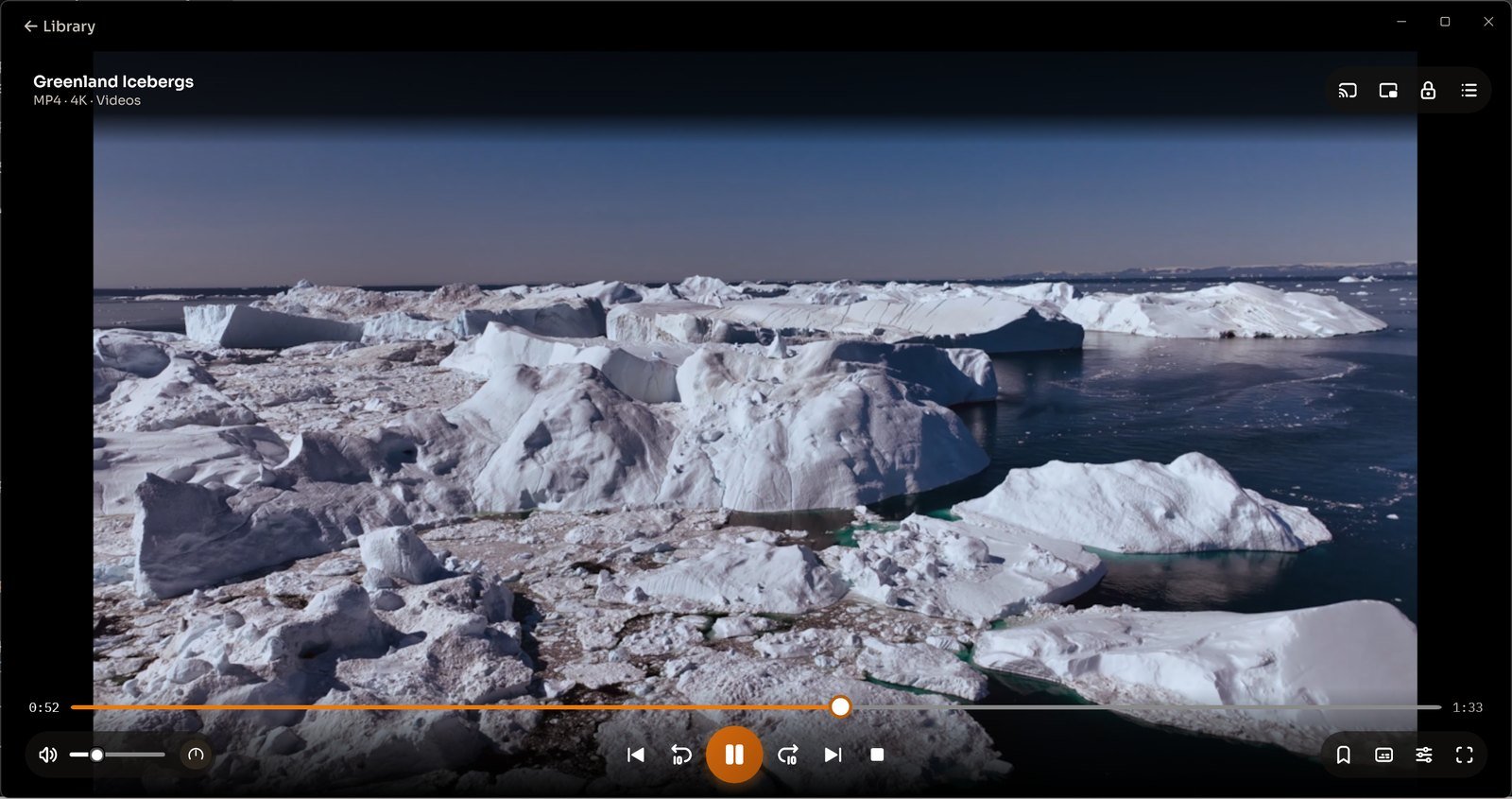
Move forward or backward in a video
CnX Player 5.0: move through a video with the timeline and the player skip-back and skip-forward controls.
Read More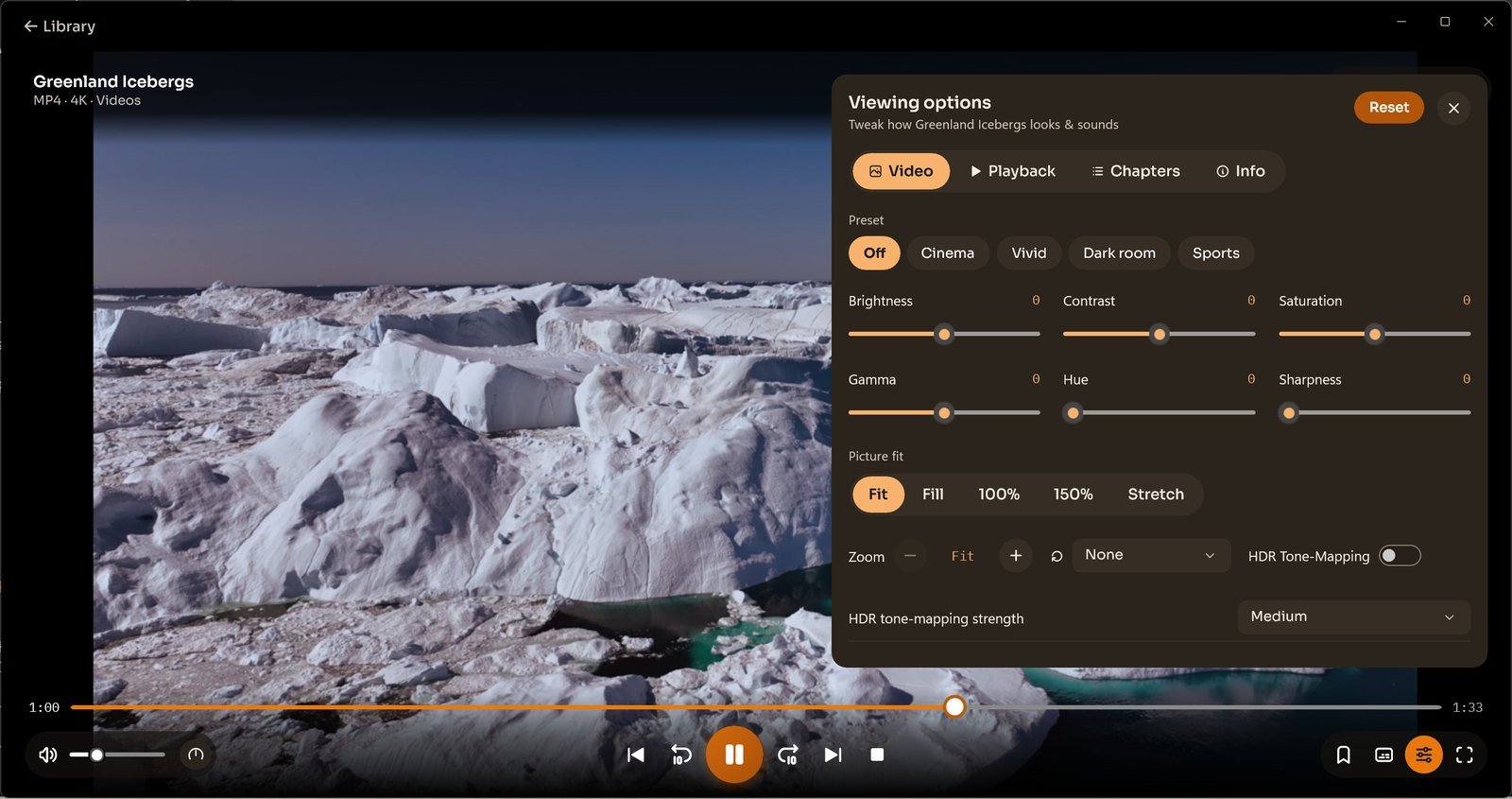
Change picture fit, zoom and rotation
CnX Player 5.0: use Viewing options to choose picture fit, zoom and rotation, or change the Picture fit preference in Settings.
Read More
Adjust brightness, contrast and picture controls
CnX Player 5.0: choose picture presets and adjust brightness, contrast, saturation, gamma, hue, sharpness and picture fit.
Read More
Touch-screen lock while watching video
CnX Player touch-lock help: identify the preview player lock control and read the separate earlier-version locking instructions.
Read MoreResume playback in earlier Windows versions
Earlier Windows restart and resume instructions, plus a link to the CnX Player 5.0 mini player that expands at the current playback position.
Read More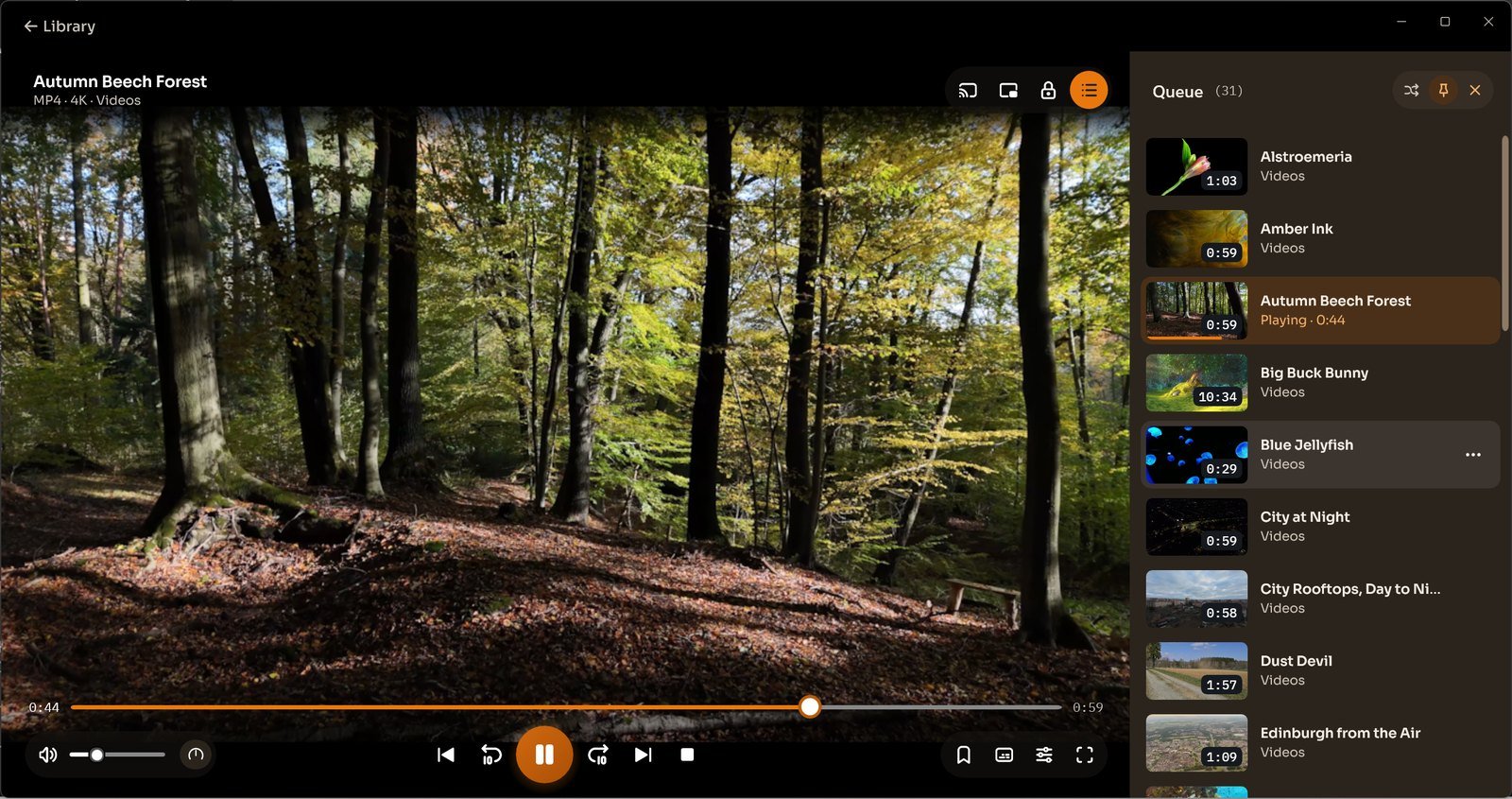
Continuous and loop playback
Use a playback queue for consecutive videos in the CnX Player 5.0; consult separate earlier-version None, One and All loop instructions.
Read MoreVideos: PantheraLeo1359531 and Rose Abrams / Wikimedia Commons, CC BY 4.0; “Big Buck Bunny” and “Sintel” © Blender Foundation, CC BY 3.0; “Sol Levante” by Akira Saitoh, Production I.G / Netflix Open Content, CC BY 4.0.
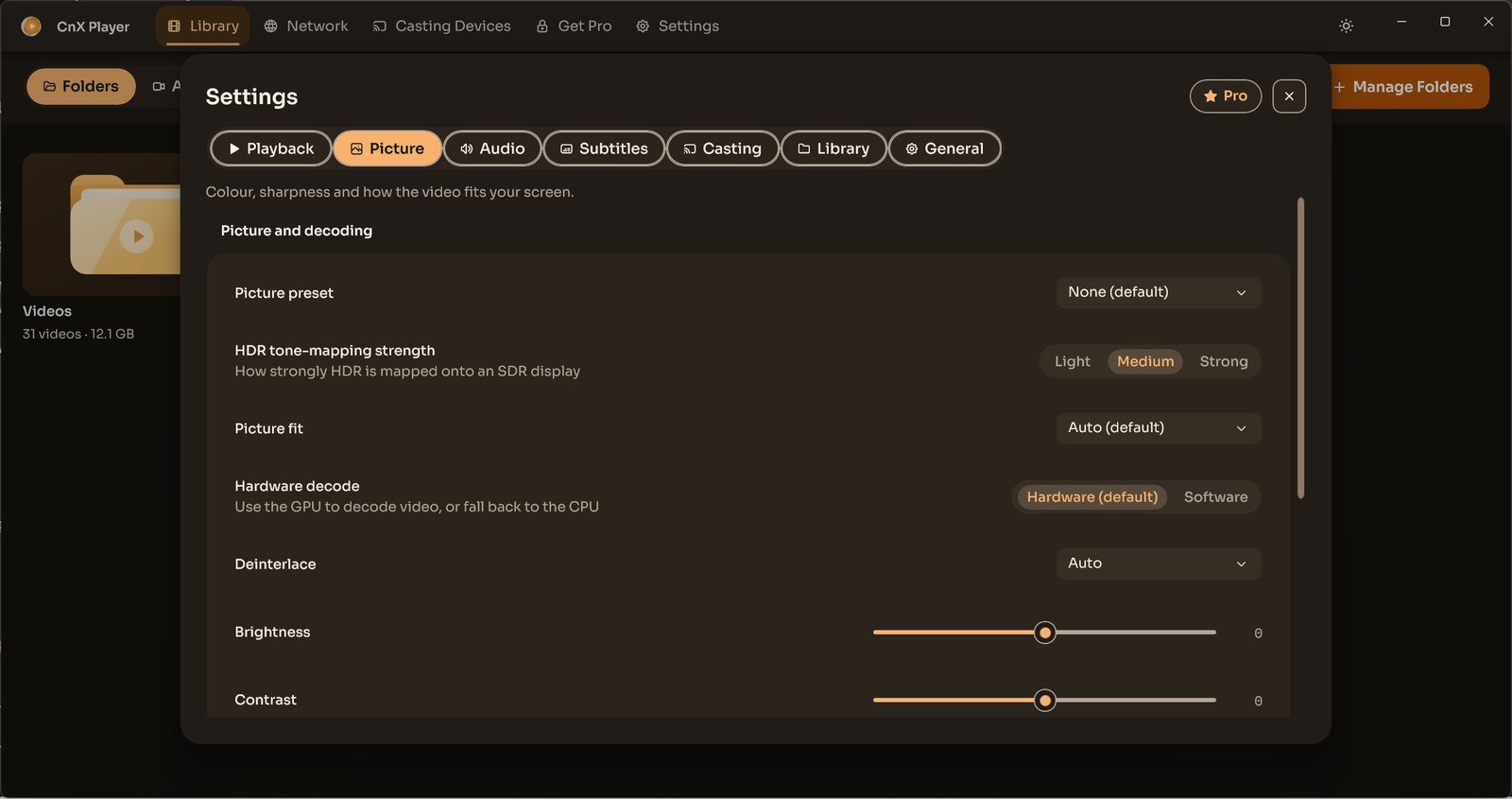
Switch between hardware and software video decoding
CnX Player 5.0: switch between Hardware and Software decoding in Settings, Picture, and note your setting when reporting a playback issue.
Read More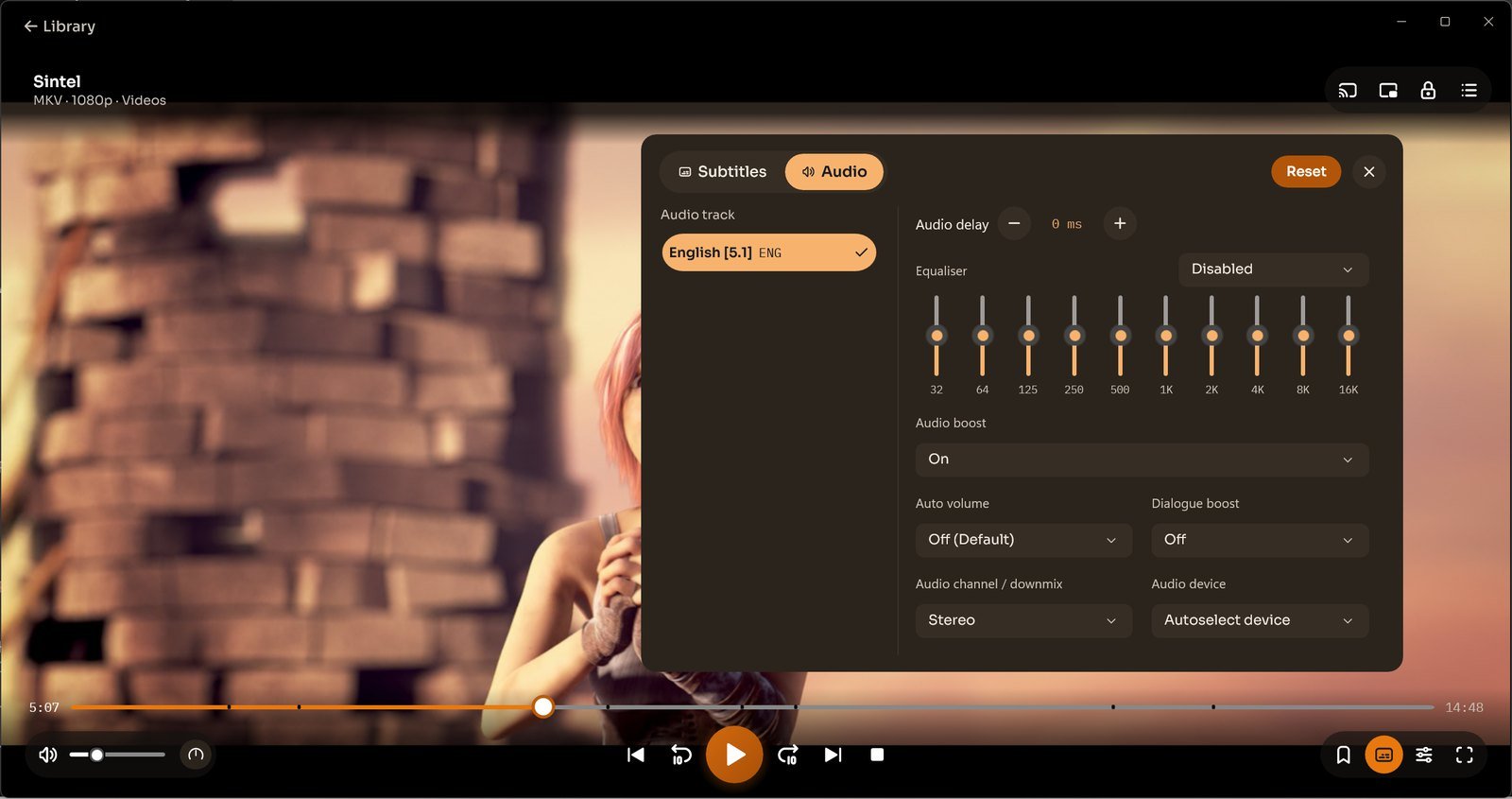
Choose an audio track and adjust sound
CnX Player 5.0: choose an audio track, adjust delay, use the 10-band equaliser and select an audio output device.
Read More“Sintel” © copyright Blender Foundation | durian.blender.org, CC BY 3.0 (creativecommons.org/licenses/by/3.0).