


Android help archive
Video Playback
Playback speed
How to change the video playback speed ? Changing the video playback speed in CnX Player is pretty simple. Just follow the steps below: 1. Tap on the settings button on video playback screen(full screen view). 2. A popup will appear with various setting
Read More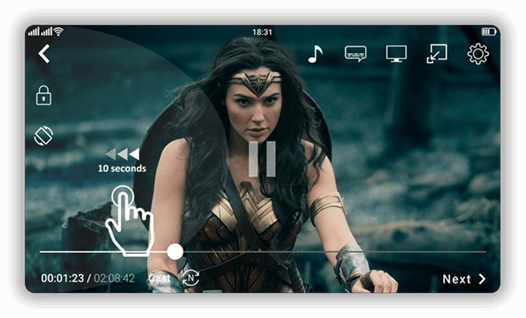
Forward / Rewind Video
Is it possible to fast forward or rewind the video ? CnX player offers very exciting feature of fast forward and Rewind(backward) the video. This makes viewing videos with selective skipping very simple. Fast forward: On the video playback screen double
Read MoreResize visual experience
Is it possible to resize my video in CnX Player ? Yes, videos can be resized in CnX Player. 1. Open settings video playback screen(full screen view). 2. Select
Read MoreScreen settings
How to change screen visual settings ? CnX Player allows you to change the video Brightness , Contrast and Saturation. 1. Open
Read MoreChild (Touch screen) lock
Is it possible to disable/lock touch screen while watching video ? Yes it is possible in CnX Player to lock the touch screen when the video is being played. Click on the lock icon to lock/unlock the screen. This feature gives an uninterrupted viewing e
Read MoreResume playback
How to resume the video watching from where it was left last ? By default video will resume playing from the point where it was last stopped. But if you wish to play the videos every time from the starting point , make the following changes. 1. Open Na
Read MoreContinuous / loop video playback
How to continuously(loop) play videos in the list automatically ? 1. Click on
Read More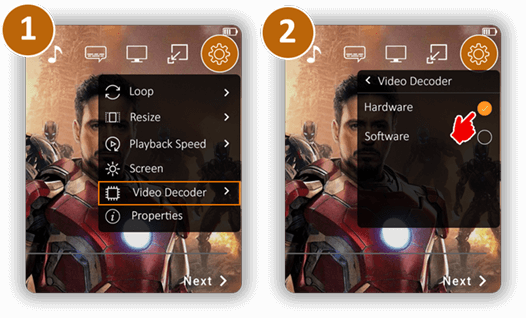
Switch video decoder
Is it possible switch between hardware and software video decoder ? Yes, CnX Player lets user to switch between hardware and software video codecs. CnX Plyer has highly optimized video codecs implementation. By default CnX player uses hardware video de
Read MoreAudio track
Is it possible to change Audio track of a video? Yes, it is possible to switch to different audio track associated to the video. Please follow steps below : 1. Click on
Read More